Hybrid Classroom Setup That Delivers Clear Lessons
A hybrid classroom setup fails when remote students become spectators. They can hear a lecture but not a question from the back row, see a tiny whiteboard, or watch the instructor disappear whenever they move to demonstrate something. The answer is not simply adding another webcam. It is designing a video, audio, and control path that gives remote learners the same useful visual and spoken cues available in the room.
For educators, AV teams, and corporate training departments, the best configuration depends on room size, teaching style, and whether sessions are live, recorded, or both. But the priorities stay consistent: intelligent camera framing, intelligible voice capture, readable shared content, and an operator-friendly way to manage multiple sources.
Start With the Teaching View, Not the Camera
Before selecting equipment, identify what remote participants need to see during a typical session. A presenter-led class has different demands than a lab, workshop, or discussion-based seminar. One front-facing camera may be enough for a lecturer who remains near a podium. It will not adequately cover a teacher moving between a whiteboard, a demonstration table, and student questions.
A practical hybrid classroom setup usually separates the presenter view from the content view. The presenter camera should show facial expressions and body language at a useful size. A second source can cover a whiteboard, document camera, demonstration area, or HDMI-connected computer presentation. This separation prevents the common compromise of aiming one wide camera at everything and producing footage where nobody is large enough to read.
Room geometry matters. Mount the main camera near eye level and as close as possible to the remote audience's natural sightline. If the camera is too high, the class appears distant and impersonal. If it is too far to one side, the instructor will appear to be looking away while addressing online students.
Use AI Tracking Where Movement Is Part of Teaching
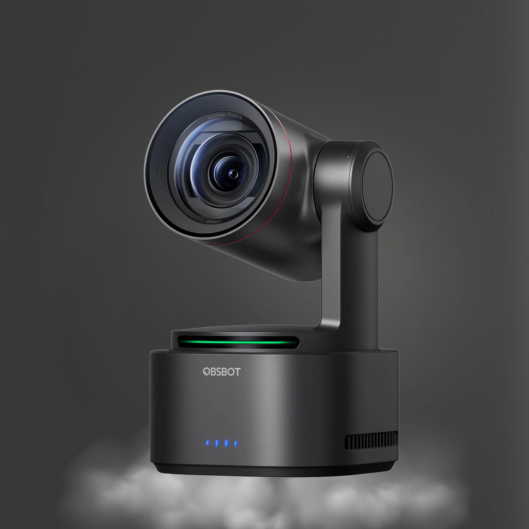
An AI-powered PTZ or PTZR camera is particularly useful when an instructor moves freely. Rather than assigning someone to operate a camera throughout the lesson, AI tracking can maintain framing as the presenter crosses the room, approaches a board, or turns toward a demonstration surface.
The benefit is not movement for its own sake. It is continuity. Remote learners should not lose the instructor halfway through an explanation because a fixed webcam was framed for the podium. Cameras with AI tracking, 4K output, and PTZ control can provide a wider acquisition area while retaining enough resolution for a tighter delivered frame.
Tracking requires careful setup. Define the tracking area so the camera does not follow students walking through the foreground or a person entering through a doorway. Test tracking sensitivity with the instructor's normal pace and gestures. In a small room, a compact 4K AI webcam may provide sufficient coverage. In larger training rooms and lecture spaces, a PTZ camera offers better placement flexibility, optical framing, and remote control.
Plan Presets for Repeatable Angles
Presets turn a multi-use room into a repeatable production environment. Configure positions for the presenter, whiteboard, wide classroom view, panel table, and demonstration station. A camera operator can call these views instantly, but presets also help instructors who need to run the session themselves.
Do not create ten presets just because the camera supports them. Three to five useful positions are typically easier to remember and faster to operate. The goal is a stable viewing experience, not constant visual motion.
Audio Is the Deciding Factor for Remote Learners
Video quality gets attention first, but poor audio is usually what causes participants to disengage. A 1080p image can still support learning. A muffled voice, HVAC noise, room echo, or missed audience question cannot.
Start with the primary speaker. A wireless lavalier or headset microphone keeps voice level consistent as the instructor moves. For a seated instructor, a close-positioned USB or XLR microphone may be appropriate. A shotgun microphone can work for a defined speaking position or presentation area, but it is not a substitute for close microphone placement in a reverberant classroom.
Student participation needs its own plan. If in-room questions matter to remote attendees, add boundary microphones, conference microphones, or strategically positioned microphones with appropriate pickup patterns. The exact choice depends on table layout and room acoustics. An omnidirectional solution can capture several people around a table, while a more directional microphone may reduce unwanted pickup in a noisier space.
Avoid relying entirely on the camera's built-in microphones for anything beyond a small, quiet room. They are convenient, but distance and echo quickly reduce clarity. Use headphones during testing to listen for the room as a remote participant would hear it, not as it sounds to someone physically present.
Build a Hybrid Classroom Setup Around Clear Sources
At minimum, most classrooms need two inputs: the instructor camera and the presentation computer. A stronger configuration adds a second camera for the whiteboard or demonstrations and a dedicated audio input for the instructor microphone.
A live video switcher makes these sources manageable. Instead of stopping screen sharing or manually changing camera settings mid-lesson, the instructor or AV operator can switch between camera angles and presentation content with a single control surface. This is especially useful for classes that are streamed, recorded, or sent to a video conferencing platform.
CineTreak live video switchers can fit compact multi-camera workflows where HDMI sources, presentation laptops, and program output need to be managed in one system. The right switcher is determined by source count, required output formats, audio inputs, and whether the room needs local display output in addition to streaming or recording.
For distributed AV environments, NDI can reduce the dependence on long direct video cable runs by moving compatible video sources across a managed network. It is a useful option for larger facilities, control rooms, and rooms where cameras need flexible placement. It also adds network design requirements. Confirm switch capacity, network segmentation, power delivery where applicable, and IT approval before making NDI the foundation of the room.
Keep Shared Content Readable
Slides and software demonstrations should enter the production chain directly through HDMI, USB capture, or a network-based workflow. Pointing a camera at a projector screen creates glare, moire patterns, weak contrast, and unreadable small text.
Set presentation output to a resolution and frame rate supported by the switcher, conferencing platform, and recording workflow. Match source formats where possible to reduce conversion issues. A classroom does not always need 4K delivery to remote students, but 4K cameras can provide valuable reframing headroom, especially when recording content for later use.
Make Control Simple Enough for Daily Use
The most capable equipment will not improve instruction if only one specialist can operate it. Daily classrooms need a clear startup routine: power on displays, connect or wake the instructor computer, verify the microphone, select the program scene, and begin the session.
Label cables, inputs, and controls in plain language. “Presenter Camera,” “Slides,” and “Whiteboard” are more useful than generic input numbers. Save camera presets and switcher scenes before the room opens. If multiple instructors use the space, provide a one-page operating guide that covers only the actions they need during a live class.
Automation can reduce errors, but it should be introduced selectively. AI tracking is highly effective for a moving presenter. Automatic camera switching may be less appropriate in a discussion where context matters and a sudden cut can distract remote learners. In those cases, a stable wide shot combined with intentional manual cuts is often better.
Test the Room From the Remote Seat
A technical check should include a real remote participant, not just an in-room monitor. Ask them whether they can understand a quiet student, read the smallest expected slide text, follow the instructor at the whiteboard, and distinguish between the presenter and shared content.
Test under actual lighting conditions. Windows, projector spill, and mixed ceiling lighting can challenge exposure and white balance. Check for latency between camera, audio, and presentation sources, particularly when a switcher, USB capture device, conferencing application, and network video are all involved. Audio that arrives noticeably before or after video makes even a well-framed class feel less professional.
Kong Kei's camera, switching, and microphone categories are suited to this integrated approach: intelligent camera coverage, purposeful audio capture, and compact source control should be selected as one workflow rather than as disconnected purchases.
A good classroom system should disappear into the lesson. When the instructor can move naturally, students can speak without repeating themselves, and remote participants can see the right source at the right moment, the technology has done its job.