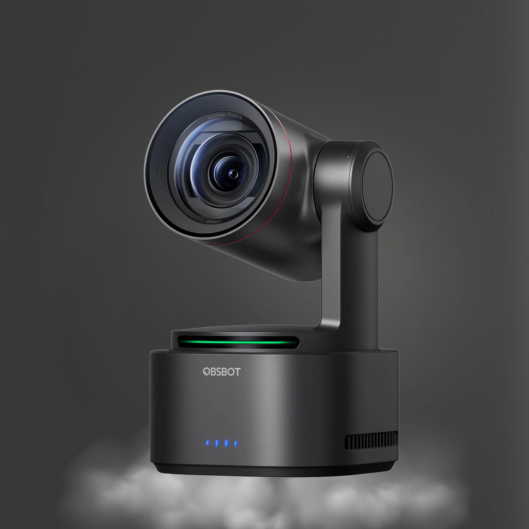
CineTreak Switchers for Multi-Camera Production
A live production can fail long before the camera image looks bad. A missed cut, an unprepared presentation input, or an operator searching through software menus can make a polished program feel unplanned. CineTreak switchers address that pressure point by placing multi-source video control at the center of a compact production workflow.
For creators, educators, corporate teams, event producers, and small studios, a switcher is not simply a box that changes cameras. It is the device that determines how confidently a production moves between presenters, demonstrations, remote guests, slides, playback, and wide shots. The right configuration reduces operational friction while keeping the program feed consistent for livestreaming, recording, or display.
What CineTreak Switchers Do in a Live Workflow
A video switcher accepts multiple video sources and selects which source reaches the program output. In a typical setup, those sources may include two or three cameras, a computer running presentation slides, a media playback device, and a feed from a remote-contribution platform. Rather than disconnecting cables or relying on a single fixed camera angle, the operator can change the audience view in real time.
That capability matters because live video is directional. A close shot is effective when a presenter makes a key point. A wide shot is useful when two hosts interact. A demonstration camera needs priority when hands, products, or documents are on the table. With a switcher, those decisions can be made deliberately as the event unfolds.
CineTreak switchers fit workflows where dedicated physical controls are preferable to managing every production function from a computer. Buttons, source labels, preview monitoring, and transition controls give an operator a more immediate view of the show state. This is especially valuable in environments where the person running video is also monitoring audio, coordinating presenters, or handling graphics.
The switcher also creates a clear division between source acquisition and program delivery. Cameras are responsible for framing and image capture. Audio equipment handles voice capture and mix quality. The switcher brings visual sources together into one controlled output. That separation makes troubleshooting more efficient when a live signal needs attention.
Choosing a CineTreak Switcher Around Your Inputs
The first selection question is not how many buttons a switcher has. It is how many active sources your production actually requires, including sources you expect to add in the next production cycle. A two-camera interview may appear simple, but it often expands to include a presentation laptop, a product close-up camera, and a playback source.
Count every live input before comparing equipment. Include cameras, computers, media players, remote feeds, and any backup source needed for business-critical streams. If a source is expected to appear on screen, it needs a planned path into the switcher.
Video format compatibility should be evaluated just as carefully. Cameras and computers may output different resolutions and frame rates. A production team should decide its delivery standard first, then configure connected devices to match wherever practical. This limits avoidable conversion issues and helps preserve a predictable program output.
For camera-based workflows, consider how the switcher will work alongside PTZ, AI-tracking, and fixed-angle cameras. A switcher does not replace camera control. Instead, it complements it. An operator might use an AI-tracking camera for a moving presenter, a PTZ camera for a controlled wide shot, and a fixed camera for a product or tabletop view. The switcher provides the editorial control to move among those shots at the right moment.
Plan for Preview, Not Just Program
A reliable live workflow depends on seeing the next source before viewers see it. Preview capability allows the operator to confirm a camera position, check whether a computer is awake, verify a presentation slide, or identify an unwanted on-screen notification before taking that source to program.
This distinction becomes more important as productions grow. In a one-person stream with two cameras, direct switching can be enough when the setup is familiar. In a corporate presentation, worship service, panel discussion, or ticketed event, preview is a practical safeguard. It gives the operator time to correct a source without putting the correction on air.
A dedicated multiview display can further improve control by showing sources, preview, and program status in one place. It does require an additional monitor and desk space, but the operational benefit is substantial when several signals are active.
Consider Audio Routing Early
Video cuts are noticeable, but poor audio causes viewers to leave faster. When evaluating a switcher workflow, define where audio will be mixed and embedded into the final video signal. The answer may be a dedicated audio mixer, an audio interface, the switcher itself, or a combination of devices.
For a straightforward talking-head stream, a microphone may be mixed directly into the production path. For panel discussions and events, a dedicated mixer gives more control over multiple microphones, music playback, remote callers, and room sound. CKMOVA microphone options can support applications ranging from close-miked presenters to conference recording, but the microphone choice and routing plan should be finalized before the first live event.
Test lip sync with the complete system connected. Cameras, computers, capture devices, and audio processing can introduce different amounts of delay. A short test recording is more useful than assuming signals will align automatically.
Building a Practical Multi-Camera Setup
A compact three-source layout is a strong starting point for many professional teams. Use one camera for the primary presenter shot, a second for a wider or alternate angle, and a computer input for slides, lower-thirds, browser content, or video playback. This arrangement supports a credible broadcast rhythm without creating an overwhelming control surface.
For product demonstrations, replace the second presenter camera with an overhead or close-up camera. For podcasts, use a wide shot plus individual host angles if the input count allows. For hybrid meetings, reserve an input for the room camera and another for the remote presentation computer.
Physical layout matters. Keep the switcher within reach of the person making cuts. Position the multiview monitor where it can be read without turning away from the main production area. Route cables with enough slack for camera adjustments, but secure them so a moving tripod or presenter cannot pull a connection loose.
Network-enabled cameras can simplify placement in some production environments, particularly where NDI is part of the workflow. However, network video adds planning requirements: adequate bandwidth, stable switches, correct addressing, and a tested fallback strategy. HDMI-based setups can be more direct for short cable runs. Neither approach is automatically better. The practical choice depends on distance, infrastructure, signal count, and the production team's technical comfort.
Operating the Switcher With Intent
Good switching follows the story rather than the temptation to change angles constantly. Cut to the speaker when a point needs emphasis. Move to slides when viewers need to read information. Use the demonstration camera when detail is the subject. Return to a stable wide shot when a presenter changes position or when the operator needs a moment to prepare the next source.
Transitions should support the program rather than call attention to themselves. A direct cut is often the cleanest choice for conversational content, fast demonstrations, and events with active speakers. Dissolves can work for reflective content or scene changes, but repeated effects can make a professional program look less disciplined.
Prepare sources before the show begins. Set camera white balance, exposure, and framing. Confirm every computer input is outputting the expected resolution. Disable unnecessary notifications on presentation devices. Check that media playback begins at the right point and that audio is not duplicated through multiple paths. Label inputs consistently on the switcher, monitor, and production notes.
A simple run-of-show is worth preparing even for short livestreams. It does not need to be complicated. Note the opening shot, the slide cues, the planned camera changes, playback moments, and closing shot. The plan gives a solo operator a reference point and helps a larger crew communicate without guessing.
When a Larger Switcher Is the Better Choice
A compact switcher is efficient when a production has a limited number of repeatable sources. It becomes restrictive when the team repeatedly swaps cables, cannot maintain a backup input, or needs to choose between a presentation source and an additional camera.
Larger productions may need more inputs, additional outputs, more advanced monitoring, dedicated upstream or downstream keying, recording options, or greater control over routing. A conference, broadcast-style podcast, house-of-worship service, or corporate event can outgrow a minimal setup quickly. Buying for the current show is sensible, but buying with one or two planned workflow expansions in mind prevents premature replacement.
Kong Kei Industrial can support a coordinated equipment path that combines CineTreak switching, OBSBOT camera options, and purpose-built microphone solutions. The value of a coordinated setup is not that every device must be complex. It is that each component has a clear job in the production chain.
Before your next live session, map every source, output, audio path, and operator responsibility on one page. That exercise will reveal whether your switcher is the missing control point or whether the real need is better camera placement, audio routing, monitoring, or crew procedure. A well-planned switcher workflow gives every camera angle a purpose and every live cut a reason.