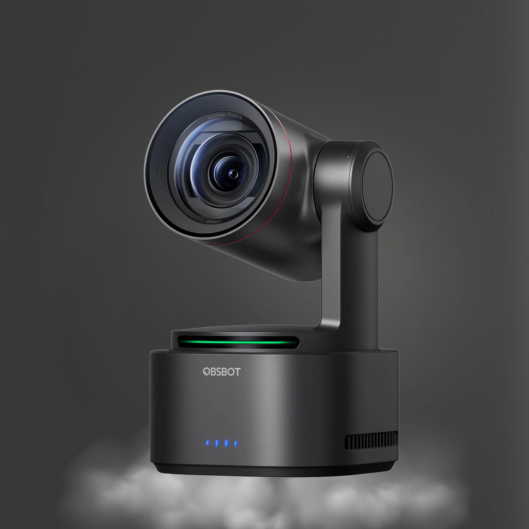
How to Configure NDI Cameras for Live Production
A camera can look excellent on its local display and still fail a live production if the network is not prepared for its video traffic. To configure NDI cameras correctly, treat the camera, switch, control computer, and production software as one connected system. The goal is not simply to make a source appear in OBS, vMix, or a hardware switcher. It is to deliver a stable, low-latency feed that remains available when multiple cameras, PTZ commands, graphics, and recording are active at the same time.
NDI is especially useful for studios, classrooms, houses of worship, corporate rooms, and event setups where one Ethernet cable can carry video, audio, control, tally, and power when PoE is available. It reduces cabling, but it does not remove the need for proper network planning.
Start With the Right NDI Network Design
Before connecting a camera, decide whether the NDI system will run on an existing LAN or a dedicated production network. A small setup with one camera and one production computer can often share a quality gigabit network. A multi-camera 4K workflow should normally use a dedicated gigabit or multi-gigabit switch, particularly when the same system also carries internet traffic, file transfers, or office devices.
The required bandwidth depends on the NDI format your camera supports. Full-bandwidth NDI prioritizes image quality and low latency but can consume substantial network capacity. NDI HX formats use compression and require less bandwidth, which makes them practical for compact installations and wireless-adjacent workflows. The trade-off is that encoding, decoding, and latency behavior can differ by camera and receiving software.
Do not assume every device labeled NDI behaves the same way. Check the exact NDI version, supported resolution and frame rates, codec format, audio channels, and whether PTZ control is carried through the same workflow. An AI PTZ camera may offer strong tracking and 4K imaging, but the production result still depends on matching those capabilities to the network and switcher receiving it.
For most fixed installations, use wired Ethernet. Wi-Fi can be useful for setup or low-demand monitoring, but it is not the preferred transport for mission-critical NDI camera feeds. A wired connection gives predictable bandwidth and avoids interference that can become visible as dropped frames, delayed video, or disappearing sources.
Configure NDI Cameras From the Network Out
Connect each camera to a managed gigabit PoE switch when possible. PoE reduces the number of power adapters at the camera position and simplifies installation, but confirm that the switch has enough total PoE budget for every connected camera. A switch may have sufficient ports while still lacking enough power for multiple PTZ units.
Next, assign a clear network identity to every device. DHCP is convenient for temporary setups, but static IP addresses or DHCP reservations are better for permanent rooms. They prevent a camera from receiving a new address after a restart and make remote management easier.
A practical device naming pattern identifies the position rather than just the model. Names such as “Stage Left,” “Presenter Close,” “Lectern,” or “Studio Wide” are more useful to an operator than a factory default name. Apply the same logic to computers and NDI receivers. When a live show has six sources, accurate names reduce switching errors.
Set Resolution, Frame Rate, and Color Consistently
Choose one production standard before configuring individual cameras. For US-based live production, common choices include 1080p at 29.97 or 59.94 fps, and 4K at 29.97 or 59.94 fps when the switcher, recorder, and network are designed for it. Avoid mixing frame rates unless your production software or switcher is explicitly handling conversion.
Frame-rate mismatch is a common source of uneven motion, added processing delay, and unnecessary CPU load. If the program is 1080p59.94, configure compatible NDI cameras to output that format. If a camera supports 4K but the delivery platform streams at 1080p, a 1080p camera output may be the more efficient choice. The image can still look professional while using less network bandwidth and processing power.
Set white balance and exposure deliberately. Auto exposure can be useful for a moving presenter, especially with AI tracking, but rapid changes in lighting may cause visible brightness shifts between shots. In controlled rooms, manual white balance and a defined exposure range generally create a more consistent multi-camera image. Match picture profiles, sharpness, and color settings across cameras before fine-tuning the program feed.
Enable NDI and Confirm the Stream
Use the camera’s web interface, desktop control application, or onboard menu to enable its NDI output. Some cameras require an NDI license, firmware update, or a specific network mode before the option becomes available. Confirm these requirements before installation day rather than discovering them during a live event.
Once enabled, restart the camera if the manufacturer recommends it. Then open NDI discovery or monitoring software on a computer connected to the same network. The camera should appear under the source name you assigned. Verify the video feed, embedded audio if used, resolution, frame rate, and signal stability before adding it to a production scene.
If the source does not appear, start with the simple checks: confirm the Ethernet link light, verify that the computer and camera are on the same subnet or have proper routing, and make sure the camera is not still in USB, HDMI-only, or another output mode. Software firewalls and network security settings can also block discovery or receive traffic.
Build PTZ and AI Tracking Into the Workflow
NDI cameras with PTZ capability can reduce staffing requirements, but only if control is organized before the event. Add each camera to the PTZ controller or compatible control application, then test pan, tilt, zoom, focus, presets, and recall speed. Presets should represent usable shots, not merely camera positions.
For example, a corporate presentation camera might use presets for a podium medium shot, a wide room shot, a seated panel, and a close-up. A church workflow may prioritize lectern, center stage, musician, and congregation-wide positions. Set preset names that match the operator's language during the production.
AI tracking adds another layer of choice. It is highly effective when one presenter moves across a defined area, but it should not be enabled blindly for every shot. A tracking camera may react to another person entering frame, a large display, or movement in the foreground depending on its tracking mode and framing rules. Test the tracking zone, zoom limit, and subject behavior under real lighting and staging conditions.
In a multi-camera setup, it is often smarter to assign one AI tracking camera to the mobile presenter and use a second camera for a locked wide shot. This gives the technical director a stable fallback angle if tracking needs adjustment during the program.
Add NDI Sources to Switching and Streaming Software
After the camera appears on the network, add it as an NDI source in your production platform. Monitor the camera feed at the intended program resolution and frame rate rather than relying on a low-resolution preview. Check whether audio is coming from the camera, an external mixer, or a dedicated audio interface, then choose one primary audio path.
Avoid using camera audio and a mixer feed simultaneously unless you have confirmed synchronization. Two active audio paths can create echo, phasing, or a noticeable delay. For professional speech capture, a dedicated CKMOVA microphone and mixer or audio interface will usually provide more controlled pickup than an on-camera microphone.
Set up multiview monitoring before the show begins. Operators need to see framing, exposure, camera movement, and source status without repeatedly opening individual windows. If your switching system supports tally, verify that each camera responds correctly so presenters and camera operators can identify the active shot.
Kong Kei’s NDI-capable camera, switching, and audio categories are designed for this type of integrated workflow: intelligent camera capture, controlled source switching, and dedicated voice pickup operating as one production chain.
Troubleshoot Before the Audience Notices
When NDI video stutters or drops, the first suspect is usually network capacity or configuration. Check that every critical link is negotiating at the expected speed and that no camera is connected through a 100 Mbps port, a low-quality adapter, or an overloaded unmanaged switch. Replace suspect cables before spending time on advanced software settings.
A managed switch gives more visibility into port speed, traffic, power delivery, and errors. For larger installations, use IGMP snooping and multicast settings only when the NDI design requires multicast distribution and the network team understands the configuration. Incorrect multicast settings can create more problems than they solve. Many small systems work best with standard unicast NDI traffic on a dedicated switch.
Also monitor the receiving computer. A 4K NDI workflow can demand significant CPU, GPU, memory, storage, and network performance, especially when the system is decoding multiple feeds while adding graphics and recording. If the computer is overloaded, reducing camera output resolution or frame rate may solve the problem more effectively than adjusting the camera.
Make the Setup Repeatable
The best NDI installation is one an operator can restart confidently. Document camera names, IP addresses, switch ports, presets, output formats, and audio routing. Save production scenes and keep a tested backup cable, power supply, and spare network port available.
A five-minute preflight check should confirm camera power, NDI discovery, PTZ movement, tracking behavior, audio meters, source synchronization, recording space, and streaming output. That routine is less glamorous than buying another piece of equipment, but it is what protects a live production when the room fills and the program starts.
Configure the system for the show you run most often, then leave enough headroom for the show that suddenly becomes larger.