Video Switchers: Choose the Right Live Setup
A second camera adds production value. A video switcher turns that camera into a usable live-production tool. It lets an operator move between presenters, close-ups, slides, replay sources, and remote feeds without asking viewers to watch a camera operator reposition equipment. For livestreams, corporate presentations, worship services, classes, and compact studio broadcasts, the right switcher determines how controlled the final program looks.
The decision is not simply about input count. Video formats, output routing, audio handling, camera control, streaming requirements, and operator workflow all affect whether a switcher fits the job. A four-input unit can be the right choice for a focused creator setup, while an event producer may need more sources, multiple program outputs, and dedicated control for complex shows.
What Video Switchers Do in a Live Workflow
A video switcher receives multiple video sources and selects which one reaches the audience or recording device. Those sources may include PTZ cameras, AI tracking cameras, a laptop running presentation software, a playback computer, an external media player, or a remote guest feed routed through a computer.
The switcher creates the program output: the finished live feed sent to a display, encoder, streaming computer, recorder, or broadcast chain. Most models also provide transition controls, allowing the operator to cut directly between sources or use a fade, wipe, or picture-in-picture effect where appropriate.
In a compact workflow, a switcher can reduce the number of software windows and manual actions required during a live show. This matters when a single person is responsible for cameras, slides, graphics, audio checks, and streaming. Hardware switching provides immediate button-based control, which is often more dependable under pressure than navigating a computer interface with a mouse.
That said, a switcher does not replace every production tool. It may still need an external streaming computer, audio mixer, recorder, graphics system, or camera controller depending on the model and production requirements. The best setup is the one that assigns each task to the right piece of equipment rather than forcing one device to handle everything.
Choose Video Switchers by Signal Compatibility First
Before comparing effects or panel layouts, confirm that every source can connect at the required resolution and frame rate. HDMI is common in creator, classroom, and small-studio environments. SDI is more typical for longer cable runs, professional cameras, and event installations where locking connectors and signal reliability are priorities.
A switcher with HDMI inputs may be efficient for an OBSBOT camera, mirrorless camera, laptop, and media source placed near the production desk. If cameras are positioned across a sanctuary, auditorium, conference hall, or event floor, SDI can be the stronger choice because it supports long cable runs without relying on HDMI extenders.
Resolution and frame rate must also align. A switcher may accept 1080p sources but not 4K, or it may support 4K inputs while delivering a 1080p program output. Neither design is automatically a limitation. Many platforms and corporate streaming workflows still distribute in 1080p, while 4K capture can preserve detail for local recording or future editing.
Check these specifications for every planned source and destination:
- Input connector type: HDMI, SDI, NDI, USB, or a required converter
- Supported resolution and frame rate, such as 1080p60 or 2160p30
- Output format for program, multiview, recording, and streaming
- HDCP behavior when connecting computers or media devices
- Genlock, frame synchronization, or built-in scalers when mixing formats
Do You Need 4K Switching?
4K video switchers are appropriate when the program is delivered or recorded in 4K, when clients require high-resolution masters, or when a production needs greater detail for large displays. They are also useful when the rest of the camera system is already 4K and the budget supports an end-to-end 4K workflow.
For many live streams, 1080p remains practical. It lowers bandwidth requirements, reduces processing demand, and matches the final viewing conditions of many audiences. A 4K camera can still provide a strong image in a 1080p switcher workflow, provided the output is converted properly. Choose 4K for a defined production requirement, not only because a specification sheet makes it look more advanced.
Count Inputs, Then Plan for One More
Input count should reflect real production needs, not just the number of cameras. A typical three-camera livestream might use one wide shot, one presenter close-up, one alternate angle, a presentation laptop, and a playback or graphics source. That is already five inputs.
A small switcher with four inputs can work well when slides are handled through a separate software workflow or when one camera is used only occasionally. But once an operator needs cameras, graphics, remote guests, and media playback at the same time, a larger model prevents constant cable changes and source compromises.
Multiview output is equally valuable. It places camera feeds, preview, program, and audio meters on one monitor so the operator can verify framing and source status before taking a shot live. Preview is especially useful for presentations and events where a wrong source cannot be easily corrected after it reaches the audience.
Consider output count as carefully as input count. A program output may feed a livestream encoder, while another output feeds confidence monitors, an in-room projector, or an external recorder. Aux outputs provide added routing flexibility, but their value depends on the production. A solo streamer working from one desk may not need them. A corporate AV team often will.
Camera Control and PTZ Workflows
PTZ and AI-powered cameras are most effective when framing and switching work as one operation. A switcher may offer control protocols, Ethernet connectivity, or integration options that let an operator recall camera presets, adjust exposure, and move PTZ cameras from a dedicated panel or compatible controller.
For a one-person production, preset recall is often more useful than constant manual movement. Establish a wide shot, a speaker close-up, a podium frame, and a stage angle before the event begins. The operator can then select a camera and recall the intended position quickly, maintaining consistent composition without needing a separate camera operator.
AI tracking cameras add another workflow option. They can follow a presenter across a classroom, stage, or studio while the switcher handles changes between the tracking camera, an audience view, and presentation content. This combination reduces staffing needs, but it should be tested before the event. Tracking behavior, lighting conditions, subject distance, and camera placement all affect the result.
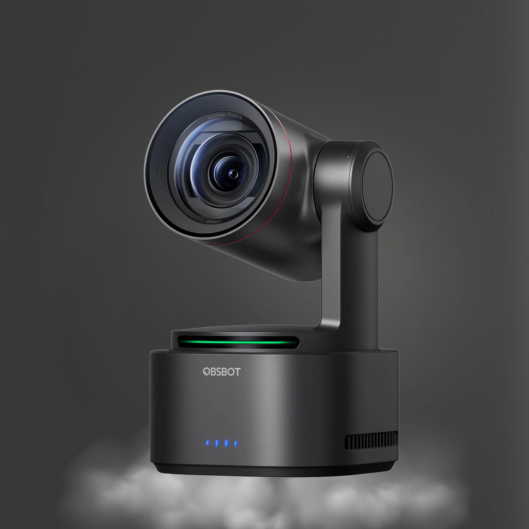
Kong Kei Industrial supports this type of compact production stack with OBSBOT AI camera options, CineTreak live video switchers, and specialized CKMOVA audio equipment. The advantage is not simply having more gear. It is selecting compatible tools that support camera movement, clean program switching, and intelligible voice capture in the same workflow.
Audio Requires a Deliberate Plan
A switcher may embed audio from HDMI or SDI sources, accept external analog audio, and offer basic mixing controls. These features are useful, but they do not automatically make the switcher the correct audio center for every production.
For a podcast, classroom, or single-presenter livestream, direct audio input can be enough if microphone gain, monitoring, and mix control are straightforward. For a panel discussion, worship service, or live event with multiple microphones, playback, audience sound, and room reinforcement, a dedicated audio mixer provides more precise routing and control.
The key issue is audio-follow-video behavior. If a camera source includes its own microphone and the switcher changes audio whenever the video source changes, the audience may hear distracting shifts in room sound. In most professional workflows, a primary microphone mix remains constant while cameras change independently. Configure audio intentionally, monitor with headphones, and confirm lip sync before going live.
Streaming, Recording, and Network Options
Some switchers include direct streaming encoders, USB webcam output, internal recording, or network control. These features can simplify a mobile setup by reducing the need for a separate computer. A direct encoder is useful for recurring meetings, field productions, education, and events where fewer devices mean faster setup.
A computer-based workflow still has advantages when the show needs advanced graphics, remote guests, detailed scene composition, chat moderation, or platform-specific control. In that case, the switcher can send its finished program feed to the computer through USB or a capture interface. The computer handles distribution, while the switcher manages camera selection.
NDI is another consideration for facilities that use networked video. It can reduce the need for dedicated video cabling and make it easier to route sources across rooms or between control locations. However, NDI requires a properly designed network. Bandwidth, switch capacity, IP addressing, and network stability should be assessed before making it the foundation of a live workflow.
Match the Switcher to the Operator
A feature-rich switcher is not always the most effective switcher. An operator who works alone benefits from clear source labels, physical buttons, multiview monitoring, and fast access to essential functions. A technical director managing a larger show may prioritize more inputs, macros, tally, routing, downstream keyers, and dedicated control surfaces.
Build the system around the production you need to execute repeatedly. Test every camera, laptop, microphone, display, and streaming destination in the same configuration you will use live. Once video switchers, camera control, and audio routing are set up with a clear operational plan, the operator can focus less on solving connection problems and more on delivering a confident program.